
MovieCaptioner Support
Check here first!

Troubleshooting
If you cannot find the answer here, shoot me an email. I'll be glad to help you! Please be as specific in describing your issue as you can. Saying, "The import doesn't work" is not helpful. Be very explicit in describing what you are doing when the problem occurs and specify whether you're using the Mac or Windows version, and include any files that may help me troubleshoot the problem. These would include your project file (with the .mcp or .mcpt file extension) or any text or caption files you're trying to import.
FAQ
- How do I make CEA 608 (Line 21) captions for broadcasting? How about CEA-708 captions?
- My captions or video are not showing up when I hit the Preview button or export to QT Embedded captions.
- My captions are a second or two off when I export as embedded SCC captions.
- I get garbage characters when I Preview or export to Embedded QT captions.
- MovieCaptioner won't launch.
- I get garbage characters when I import text.
- I get an error that says "This does not appear to be a file created by MovieCaptioner".
- My movie is not opening in the QuickTime Player.
- My Embedded SCC captions are not showing up in QuickTime. I get a black screen that says "Sonic Scenarist V1.0".
- Where are my SCC captions? I embedded them in my movie and now they're not there.
- I used Compressor to add SCC captions to my movie, but they're not there.
- When I try to save my captions in the QT Player, I get an error that says "The movie could not be saved. The end of the file was reached."
- My QT SMIL movies don't display my captions online.
- I get an error that says "An exception of class OutOfBoundsException was not handled. The application must shut down." when I try to open my project. Then MovieCaptioner crashes.
- After exporting the SCC captions to be embedded in the QT movie, when I try to save I get an "End of File" error and it never saves.
- MovieCaptioner crashed. Is there a way to recover my project?
- After I load my movie, MovieCaptioner crashes.
- MovieCaptioner will run as administrator on Windows, but won't run for other users.
- (Mac Only) When I go to install MovieCaptioner, I get an alert that says "MovieCaptioner cannot be opened because Apple cannot check for malicious software."
- How do I make CEA-608 (Line 21) captions for broadcasting? How about CEA-708 captions?
- My captions or video are not showing up when I hit the Preview button or export to Embedded QT (Windows) or Open-Captioned Movie (Mac).
- My captions are a second or two off when I export as embedded SCC captions.
- I get garbage characters when I Preview or export captions.
- MovieCaptioner won't launch.
- I get garbage characters when I import text.
- I get an error that says "This does not appear to be a file created by MovieCaptioner".
- My movie is not opening in the QuickTime Player.
- My Embedded SCC captions are not showing up in QuickTime. I get a black screen that says "Sonic Scenarist V1.0".
- Where are my SCC captions? I embedded them in my movie and now they're not there.
- I used Compressor to add SCC captions to my movie, but they're not there.
- When I try to save my captions in the QT Player, I get an error that says "The movie could not be saved. The end of the file was reached."
- My QT SMIL movies don't display my captions online.
- I get an error that says "An exception of class OutOfBoundsException was not handled. The application must shut down." when I try to open my project. Then MovieCaptioner crashes.
- After exporting the SCC captions to be embedded in the QT movie, when I try to save I get an "End of File" error and it never saves.
- MovieCaptioner crashed. Is there a way to recover my project?
- After I load my movie, MovieCaptioner crashes.
- MovieCaptioner will run as administrator on Windows, but won't run for other users on the same computer.
- (Mac Only) When I go to install MovieCaptioner, I get an alert that says "MovieCaptioner cannot be opened because Apple cannot check for malicious software."

The easiest way to make captioned video for broadcast is on a Mac using MovieCaptioner and Compressor. MovieCaptioner cannot actually create the broadcast file, but it will create the caption file you will need to add to your video. In Compressor you just add your high def movie, then add your SCC caption file and export as an MPEG-2 transport stream or whatever your broadcaster calls for. This will create what is known as CEA-608 captions in the movie. Please see this tutorial Using Compressor to add SCC Captions to Video for Broadcast TV.
On Windows (and Mac as well) you may be able to use Adobe Premiere to export your captioned video if your broadcaster can accept what is known as "sidecar captions". You would export as Sonic Scenarist (SCC Premiere-compatible) format from MovieCaptioner, then import your SCC file into Premiere before exporting your final movie.
The newer format, CEA-708 captions require a MCC caption file which MovieCaptioner cannot currently create, but under the Export menu there is the MCC (via Rev.com) option that will create an SRT file so you can submit it to Rev.com's free Caption Converter service. Upon submitting your SRT file they will email you back with the converted MCC file. You can choose from many other formats to convert it to as well.
[Top]
One cause of the video not showing up is if MovieCaptioner can't find your movie. MovieCaptioner works best if you do not have your movies on an external drive or volume. Keep your movies on your main hard drive. If your movie is on an external hard drive, MovieCaptioner may have trouble finding the movie or writing the caption files necessary for Preview, embedded or open captions, or SMIL movies. If MovieCaptioner crashes on export or the movie does not load in QT on use of the Preview button, this may be the cause. I typically put both the project and the movie on my Desktop while I work, then move them to another folder or hard drive when I'm done. When editing a previous project I just move them to the Desktop again and open the project.
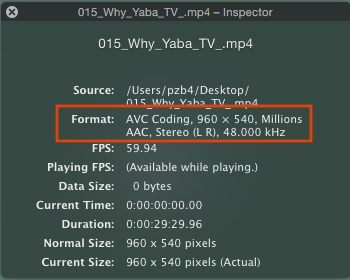
It could also be due to the movie being encoded with AVC Coding as the video encoder. This video format is known to cause problems with QuickTime when trying to add or save captions into a movie. It may also crash MovieCaptioner in some cases (if using JVT/AVC Coding). To know if your movie it using AVC Coding, open it in QuickTime Player and go to the Movie Inspector window. If you see AVC Coding listed, that's probably the culprit. Do not get this confused with AAC audio, which is just fine. The fix is usually to re-export your movie using MPEG Streamclip, a free cross-platform video conversion software that you can download here: http://www.squared5.com. On Windows, it will not say AVC Coding, but may instead say H.264. The H.264 format is usually OK, but it may be in the AVC Coding format, which is not. Try exporting it again using MPEG Streamclip and see if that helps.
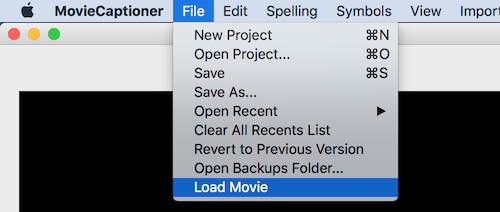
Another cause is that some movies are just not written correctly for some reason. I've found that deleting the last few frames of the movie and saving it again somehow fixes the problem. Then try using it in MovieCaptioner again or use the Load Movie option under the File menu to replace it if you've renamed it.
[Top]
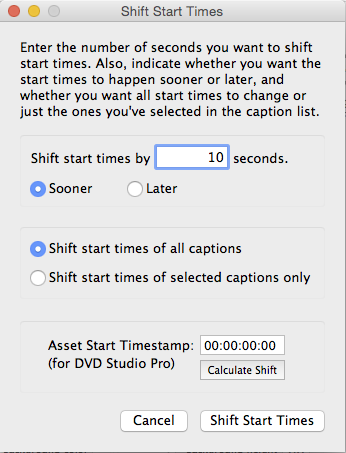
You may need to use "Shift Start Times..." under the edit window to fine tune your SCC export timing. It sometimes depends on how you got your captions in to begin with. If you set them all in MovieCaptioner, they're probably fine, but if you imported from an SCC file, for example, they may be slightly off as SCC files can be optimized for different outputs (such as Compressor or DVD Studio Pro). See the tutorial video on Setting Timecode for more information.
Watch this video to see how to use the Set Timecode button properly.
Setting Timecode
(Synchronizing Imported Text with the Video)
In this video I show you how to synchronize your imported transcripts to the video using the Set Timecode button. It is important to remember to hit your Return/Enter key at the first word of each caption to get perfect synchronization. The Set Timecode button can also be used to fine tune the timing of captions you set by either typing them in using the Repeat function or if you have imported another caption format.
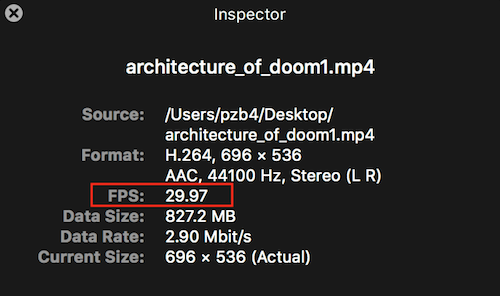
It could also be that you didn't set your frame rate to match your movie. To find your movie's frame rate, open it in QuickTime Player and check what the FPS setting is in the Movie Inspector window, then in MovieCaptioner's Preferences window you can set the frame rate to match it.

[Top]
It could also be that you failed to save your text file that you imported into MovieCaptioner with UTF-8 Encoding and Unix line breaks. See this page on Importing Text Files.
[Top]
If MovieCaptioner fails to launch on Windows (Runtime Error), it's probably because you don't have QuickTime 7 installed. It often looks something like this (it may vary)...
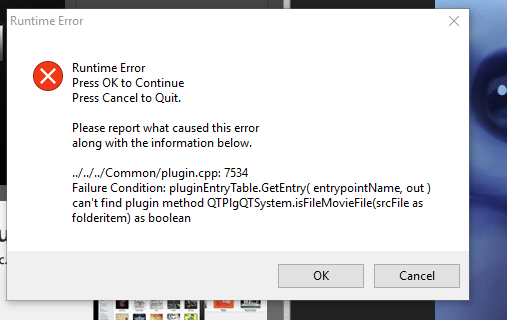
MovieCaptioner needs the QuickTime libraries to function properly on Windows. Download and install QuickTime for Windows here: http://synchrimedia.com/QT/QuickTimeInstaller.exe.zip. Please restart your computer after installing QuickTime so the QT libraries will become available to MovieCaptioner.
Also on Windows, if you try to start MovieCaptioner and nothing happens, it may be that you need to adjust the permissions to the ProgramData\MovieCaptioner directory so that it has Read & Write permissions for all users. Make sure that the files within that folder have Read & Write permissions as well. Just right-click that directory, select Properties, then click on the Security tab. From there you can change the permissions for users by selecting Users, then the Edit button and just making sure that all users have Read & Execute, Listfolder contents, Read, Write, and Special permissions.
On a Mac, try deleting your preferences file. It will create a new one once it's opened again. To do so, go to ~user/LIbrary/Application Support/MovieCaptioner and delete the file called MovieCaptionerPreferences.
Also, make sure MovieCaptioner is in your main hard drive's Applications folder. The whole MovieCaptioner folder should be there, not just the application.
If the MovieCaptioner application folder is grayed out, you need to reset the permissions so that you have read and write access to it (may need to do this as an admin).
[Top]
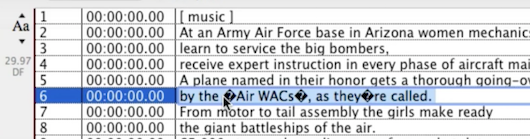
First, make sure you are importing a ".txt" file and not RTF or MS Word, which can contain text formatting which will show up as garbage characters, which can interfere with your caption exports. Save your file as plain text and make sure it uses "UTF-8 Encoding". UTF-8 Encoding should fix the unsupported characters for you. Unsupported characters include things like smart quotes, curly apostrophes, em-dashes, en-dashes, ellipses and some others. Please see the page on Importing Text Files for more information.
[Top]
If you get this error, it probably means you closed out of the project before entering any captions or that there is something wrong with your project file. You'll need to start over in this case by loading your movie again. Since you never set any captions you haven't really lost anything. If you know you've set captions already, quit out of MovieCaptioner, then open MovieCaptioner again and go to File > Open Backups Folder. There you might find a previous version of your project in a folder listed by date.
[Top]
 It may not be an accepted format or you may not have the right plugin for QuickTime to play it. MovieCaptioner accepts MP4, MOV, M4V, and MP3 files natively. Others may not work and will need to be converted. You can use the free app MPEG Streamclip to convert it to a QuickTime movie. There is a version for both Mac and Windows available.
Another problem could be that the movie you are trying to add captions to is write-protected, or that it is on a CD, in which case it cannot be changed. Try saving a copy of the movie to the Desktop and using that one in your project instead. MovieCaptioner tries to write the QT Text file into the same directory as the movie, so if the movie is on a CD or another hard drive, it may not be able to do so.
 If the movie is on a DVD, you may need to use the free app HandBrake to rip a copy of the movie so it can be used in MovieCaptioner. Make sure you have permission to do so first, though.
[Top]

You might have an issue with timecode in your project. Make sure all timecodes are in sequence and preferably at least one second apart to give the player enough time to buffer the next captions. Otherwise they could be skipped and/or an error such as this will occur. Another reason would be if you do not have the ClosedCaptionImporter plugin installed or installed incorrectly. You can download the CloseCaptionImporter.component here. Another possibility is that two (or more) of the captions are long and are coming in too quickly in succession. Sometimes the SCC format cannot display the captions so close together and it results in an error. Try breaking up the captions somewhat to even them out if possible.
More SCC file troubleshooting tips may be found here: http://synchrimedia.blogspot.com/2011/06/troubleshooting-scc-line-21-caption.html.
[Top]
There are several things to check here...
First of all, QuickTime will only save SCC captions for MPEG-4 (MP4) movies. If you try to embed captions into a plain old ".mov" file, you may see the captions after you embed them, however, if you quit out of QT Player and then open your movie again, even though the closed caption track is still there, QT Player will be unable to display the captions. I recommend downloading MPEG Streamclip (free video conversion tool that is cross platform) and exporting your movie from it as MPEG-4, which will save it with the ".mp4" extension. Then load this into MovieCaptioner prior to exporting as embedded SCC captions (go to File > Load Movie in MovieCaptioner to replace a movie you had in your project already). Once you save the movie with captions it should work even if you quit out of QT Player and open it again. Just be sure that Show Closed Captioning is selected under the View menu if they don't display right away.
If you close your SCC captioned movie without saving, QuickTime Player will not warn you to save and you'll lose your caption track and will have to export again from MovieCaptioner (don't worry, your captions will still be in your MovieCaptioner project window).
If you did save your SCC captioned movie and you don't see the captions next time you open it in QuickTime Player, go to the View menu in the QuickTime Player and choose Show CLosed Captioning. This is turned off by default in QuickTime Player.
[Top]
First, open your movie in QuickTime Pro ($30 upgrade to QuickTime Player 7 from Apple) and go to the Movie Properties window. Make sure there is only a Video Track and a Sound Track and no other tracks prior to opening your movie in Compressor. Extra tracks will mess it up. If your see a Timecode Track, for example, select it and hit the Delete button in the corner of the Movie Properties window, then save the movie.
 Another reason that you may not see your captions after using Compressor is that Compressor adds the captions differently than QuickTime does and you may need to use another video player such as the free VLC Player to see your captions. VLC will display the captions differently than what SCC captions usually look like, but at least you'll know they were successfully added to your movie. This is a good way to check your MPEG-2 Transport stream movie prior to sending it to your broadcaster. QuickTime usually cannot open these types of movies anyway.
Make sure that Show Closed Captioning is on (under QuickTime 7 Player's View menu) or Subtitles are turned on in QuickTime X on the Mac if you are playing a movie that has SCC captions. By default this is turned off usually.
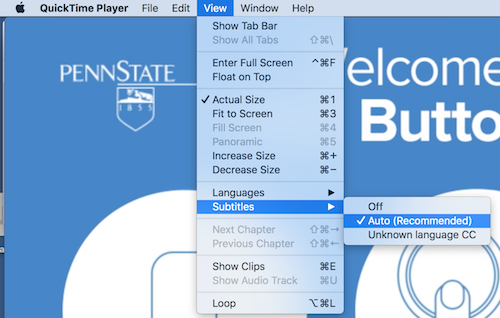
Finally, I've seen cases where Compressor cannot seem to handle some types of video formats. You may have to try exporting your movie in a different format prior to opening it in Compressor.
[Top]
This usually means that there is something wrong with the movie, even though it may play correctly in QuickTime. You may need to re-export your movie from Final Cut or wherever it was originally made and try again. Most often I've seen this problem with movies that use AVC Coding as the video compression algorithm. Re-exporting a new movie from MPEG Streamclip usually solves the problem. There may also be an unneeded Timecode track that needs to be deleted from the movie. It can interfere with the addition of another track.
[Top]
Embedding a QT SMIL movie in a web page will require you to use absolute URLs to the files instead of the local ones written by MovieCaptioner. Also, all 3 files (the QT movie, the QT text file, and the QT.SMI file) should be uploaded to the same folder on your website. So if they are uploaded to http://www.mywebsite.com/movies/ you will need to go into the .qt.smi file and change the links to the video source and textstream source to "http://www.mywebsite.com/movies/myMovie.mov" and "http://www.mywebsite.com/movies/myMovie.txt".
Note that there is a known bug in QuickTime for Windows that may garble the sound on Windows computers when movies are played via a QT SMIL file. The only fix seems to be to play the SMIL file in the QuickTime Player for Windows (instead of the browser), then open the AV Control panel and slightly adjust the Pitch, Jog, or Playback Speed and the sound will become normal. Just moving one of these controls slightly should do the trick. It can be reset to the default value after that and the sound will work. Unfortunately you have to do this for each movie you open. It will not reset it for all.
[Top]
A couple things can cause this. First, make sure you have MovieCaptioner installed properly in your main hard drive's Applications folder. If that's not the issue, then open your project (.mcpt) file in a text editor such as BBEdit or Text Wrangler and make sure that Soft Wrap Text is not enabled (so things that are written to one line stay on one line and are not wrapped). Due to a bug in earlier versions of MovieCaptioner, extra carriage returns may get saved into the project in the captions line, which is line 8 if you have "Show Line Numbers" enabled in BBEdit. Look at your file. The line with the captions (all separted by ":::") should be on line 8 only. They should not wrap to two or more lines. If you have more than one line of captions, then you need to get all the captions back on line 8. Just put your cursor before the next line and hit the Delete key to move that line up to line 8. Do this for each extra line, being careful to keep the ":::" separators intact. Then try opening it in MovieCaptioner again. If you can't get it, send your project file to me at synchrimedia@gmail.com and I'll try to fix it for you right away. This error will not occur again since version 4.1 was released. It was caused by editing in the text area below the movie (instead of in the caption list). A line break would get written back into the caption and transferred to the project file. That won't happen anymore, but I'd still recommend editing in the caption list on the right and using the text area only for creating new captions.
If you get this crash error after attempting to import a particular format of caption file, it's probably due to a problem with the file not following the spec properly for that format. Tabs, spaces, commas and other elements must be properly used or it could throw a monkey wrench into things. Also, be careful that timecode elements like 00:00:05 are not included in the captions or it may cause MovieCaptioner to think that line is a timecode line. Best to remove it until you import the file. This also goes for timecode separators such as "-->" that is present in SRT files. Keep them out of the captions or they may cause a crash.
[Top]
This is usually caused by movies that are exported with AVC Coding as the video compressor. What you need to do is open the movie in MPEG Streamclip (free from Squared5) and re-export using h.264 and AAC audio (even if it already was). The new movie should fix the problem. If not, you may need to trim the last 3 frames from the movie and save it.
[Top]
As of version 4.4 of MovieCaptioner, a Backups folder was added to the user/Library/Application Support/MovieCaptioner folder. When you close your MovieCaptioner project, MovieCaptioner will copy all the files in the Temp folder and add them to a folder (named by the date) in the Backup folder. This is easily accessible via the File menu in MovieCaptioner. Select the version of your project with the highest number that is appended to the file name and that should be the most recent version. It will ask you to resave your project to another location.
Another option might be that if you had exported a file during the course of your work that MovieCaptioner can import, you can import that file into a new project and recover much of your work.
[Top]
This could be a couple of things and both are related to the movie itself.
If your movie uses JVT/AVC Coding, it may cause MovieCaptioner to crash. That format also will often prevent captions from being embedded into the movie. You will probably need to re-export the movie as H.264 with AAC audio. You can either use QuickTime Pro ($30 upgrade to the QuickTime 7 Player) or MPEG Streamclip, a free app available from Squared5. For more info on this issue, see this blog post: Problems with AVC Coding and Captioning.
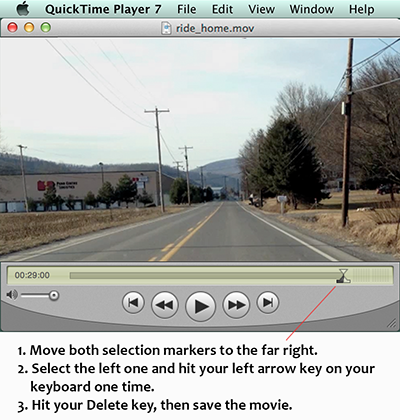
Another reason could be an error in the way the movie was saved. Even if the movie is saved as H.264, it could crash MovieCaptioner due to a poorly written file. I've found that the fix is to delete the last 3 frames of the movie using QuickTime Pro, then save the movie. All you do is open your movie in QT Pro, move the selection markers to the end, select the left one and hit your arrow key on your keyboard once. This will move the selection about 3 frames in from the end. Then hit your Delete key and save the movie. If that was the problem, it should no longer crash MovieCaptioner. This image might help:
[Top]
Most issues with Windows are due to the user not having read/write permissions. Make sure all users have read/write permissions to the ProgramData\MovieCaptioner folder. Make sure all the files in that folder have read/write rights as well.
Another option is to give the application rights to run as admin. See this link for more info on that: http://www.cnet.com/how-to/always-run-a-program-in-administrator-mode-in-windows-10/
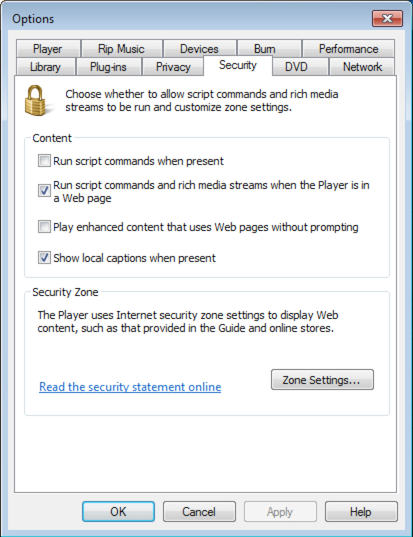
By default, Apple restricts the installation of apps to only those from the Mac App Store. You need to change this by going to the System Preferences and clicking on the Security & Privacy icon. From there, click on the General tab and unlock the lock icon at the bottom left corner of that window by clicking on it and entering your computer's password. Then just check the radio button that says Allow apps downloaded from: App Store and identified developers. It should then give you the option to install the software.

[Top]